
How can I update my Multi-Factor Authentication (MFA) preference?
There are now three options available to you, for receiving your unique passcode each time you login:
- SMS/Text
- Authentication App (NEW).
To change your MFA preference and/or switch to the Authentication App, follow these simple steps:
1) Log into your account
2) Click on the email address that appears in the top righthand side of the page:

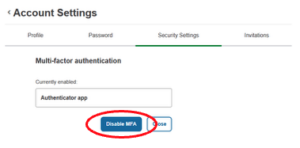
3) Select “Security Settings“:

4) Select the “Disable MFA” option:
4) Sign out of your account:
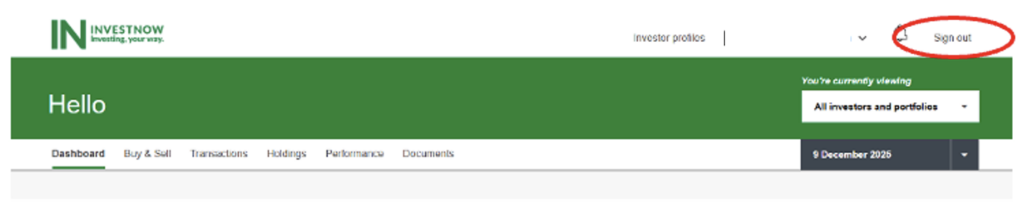
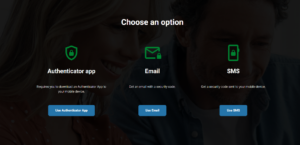
The next time you login you will be presented with the ability to select from the three MFA options available to you.
- Authenticator app – this will work with most common authenticator apps (Google, Microsoft, etc.). You will need to scan the QR code to set this up or alternatively enter in the set-up key to your app.
- Email – you will be sent a code to your email address
- SMS – you will need to enter in your mobile number and you will receive a code via text message
Select the one you want to use and follow the simple instructions:
Note: You can repeat these steps should you wish to change your MFA preference at any time.